
Knowledge Base
Reports & Insights
Last updated on August 16th, 2023
Reports and Insights
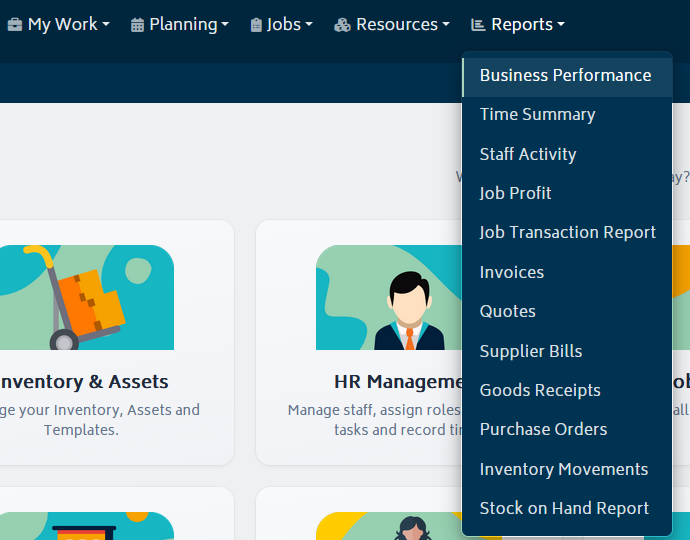
The reporting modules in Gojee allow business owners and managers to monitor business performance in real time. To access reports, navigate to Reports & Insights from the main navigation dashboard:

Reports can also be accessed through the top navigation menu:
Time Summary
The time summary report provides an aggregated view of your staff’s hours over a date range:
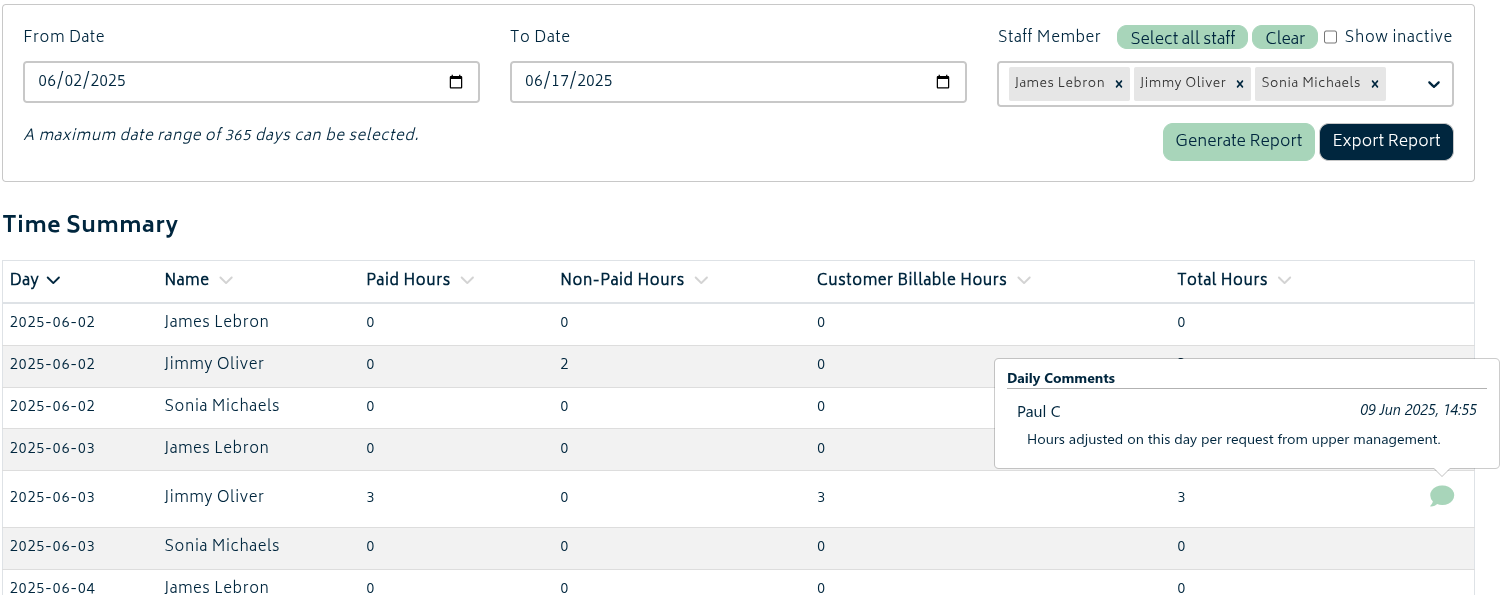
Select the start and end date, choose one or more staff members from the dropdown, and click Generate Report.
The report groups results by day and staff member, then breaks the hours down by activity. It shows paid hours, non-paid hours, customer billable hours, leave hours, and any daily comments recorded for that day. You can export the data shown in the list using the Export Report button. This will download the information in your browser in a CSV format.
If Advanced Payroll is enabled, ensure time entries and activities are configured correctly before interpreting payroll-related totals.
Staff Activity
The staff activity report shows each recorded time interval individually instead of aggregating hours into daily totals. Use it when you need to review exact start and end times, hours recorded, the related job, profession, activity, source, and any comments attached to the interval.
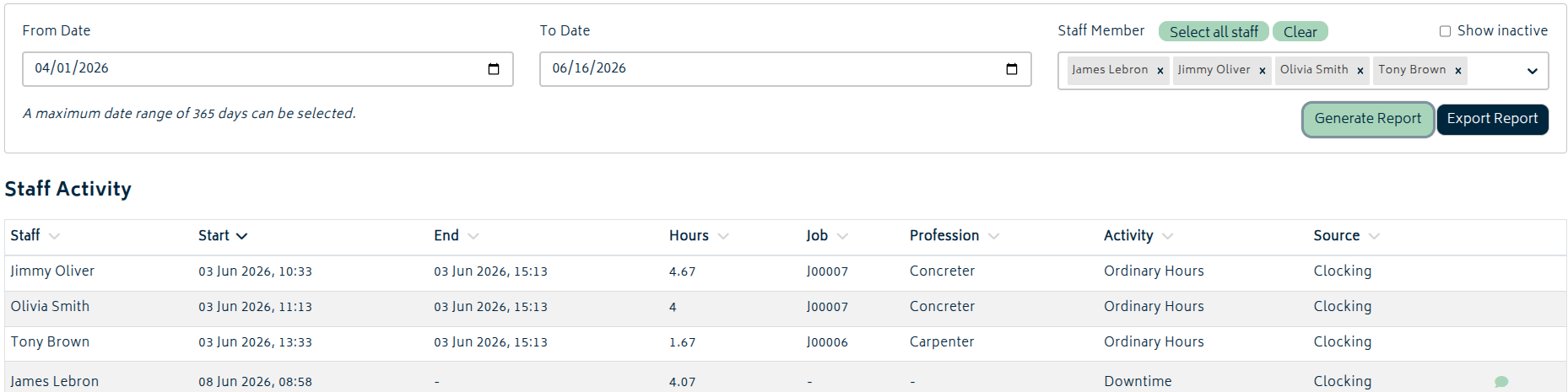
Navigate to Reports and Insights > Staff Activity, select the start and end date, choose one or more staff members, and click Generate Report.
Each row represents one recorded interval and includes the staff member, start and end time, hours recorded, related job, profession, activity, source, and any comments attached to that interval. The report includes both clocked work and time-entry-based records, making it better suited to detailed review than Time Summary.
You can expand comments directly from the list by clicking the comment icons per row. The visible report can also be exported to CSV using the Export Report button.
If Advanced Payroll is enabled, some rows may include markers showing intervals that were generated or adjusted by pay template rules.
Job Profit
Job Profit generates a summary report for all jobs to see how they are performing in real time:
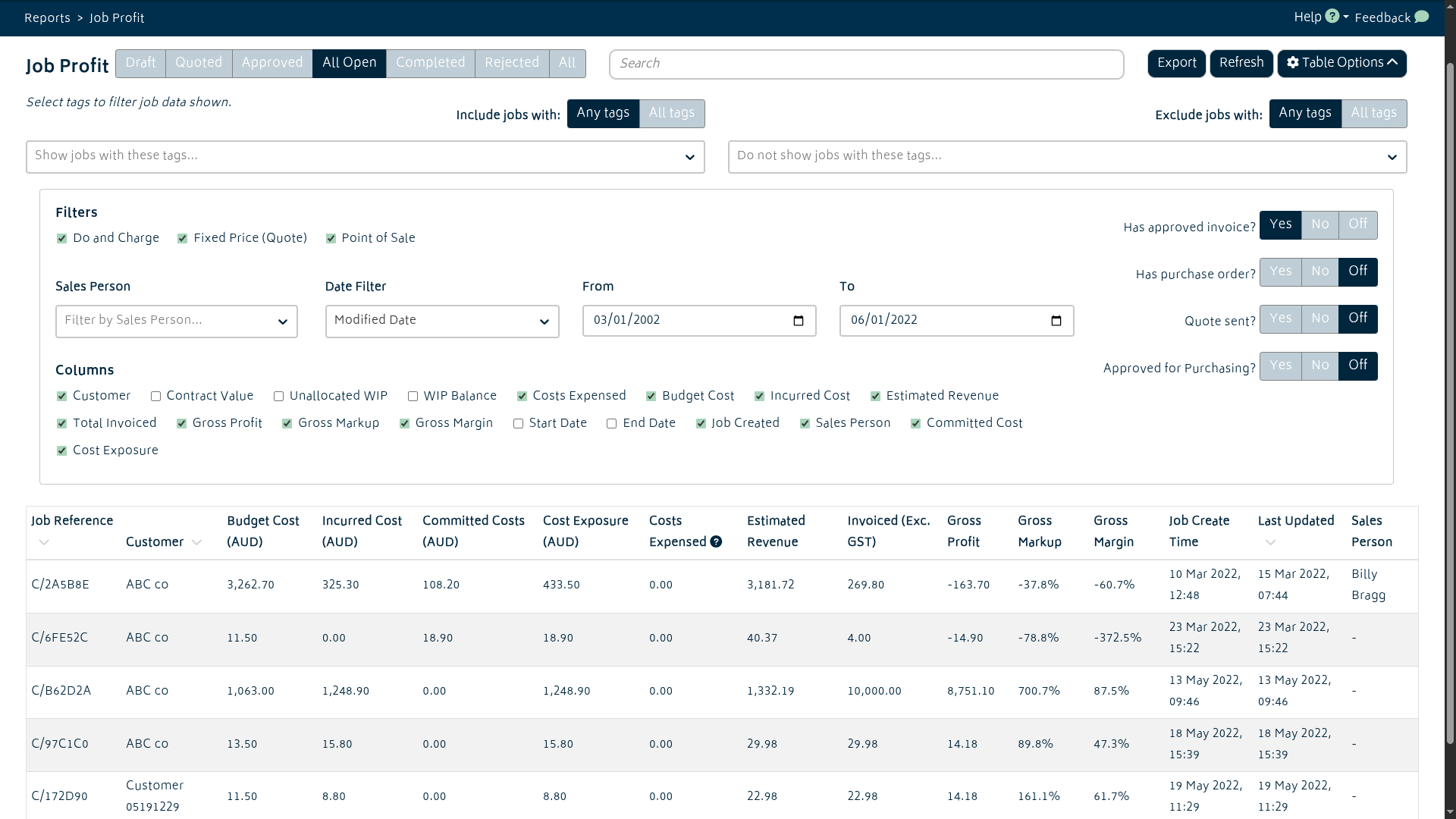
- The list can be sorted based on “Job Reference”, “Customer”, “Contract Value”, “Job Start Date”, “Job End Date”, and “Last Updated”. Simply click on these headers to sort displayed jobs.
- The budgets for job costs reflect the chosen budget checkpoint on the review page for the given job.
- You can search for relevant jobs through job reference number, title, or customer name using the search bar at the top of the page.
- The Table Options button allows you to filter the list to find jobs based on a wide array of criteria as well as to show/hide columns of information.
- Tag filtering is also available in the same manner as the job list.
- To see the full financial breakdown of any job in the list, simply click on the row and you’ll be navigated to the job review page for that job (refer to Job Actions for more information).
Specific columns will be able to be added to the list of viewable columns if certain add-ons are enabled:
- “Costs Expensed” will be added if Cost Adjustments is enabled. In addition, the “WIP Balance” and “Unallocated WIP” columns will be enabled if work-in-progress accounting is enabled.
- “Contract Value” will be added if Progress Claims and Retentions is enabled.
In addition to the ability to see related information about jobs, you can also export the job information. The export will contain all columns that can be viewed via the Job Profit report. Click the “Export” button on the top right and you’ll be presented with this modal:
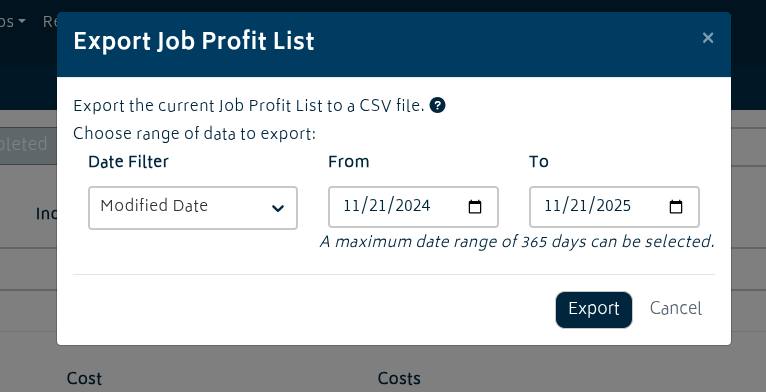
If you have date filter settings applied to the list, it will automatically import those settings. Otherwise, it will default to exporting all jobs modified within the last year. You can modify the date range or the filter (date modified, date created, start date, end date) to change which jobs are exported. There is a maximum range of 1 year for the export.
The export can also be reached via the Navigation Dashboard under Export Data -> Job Profit List.
Invoices
The invoices report allows you to view all the invoices that were raised against the jobs/projects through Gojee. All these invoices are searchable and presented based on invoice status(es) from Xero:
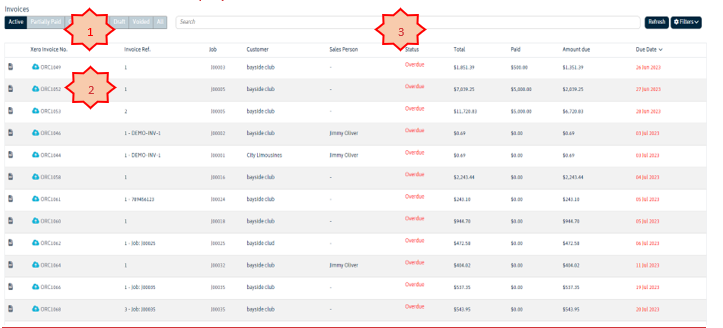
The numbered items in the report are described below:
- Status Filter: By default, the system displays all active invoices; you can select different invoice status(es) to view different invoices:
- Partially Paid
- Overdue
- Paid
- Draft
- Voided
- All
- Xero Deep Link: Displays the link for you to open and view the invoice inside Xero.
- Search Bar: The search bar allows you to search for an invoice using invoice number, customer name or sales person.
Note: You can click on any invoice in the list to open the invoice edit page.
To learn more about creating and editing invoices, refer to the Invoicing and Payments section.
Quotes & Estimates
Quotes and Estimates provides a view of all the quotes and estimates created in Gojee. By default, all the Quotes and Estimates are sorted based on their “Issue Date.” The report displays the status(es) of these Quotes and Estimates for better tracking. If a sales order exists for a quote, it will be displayed alongside the quote.
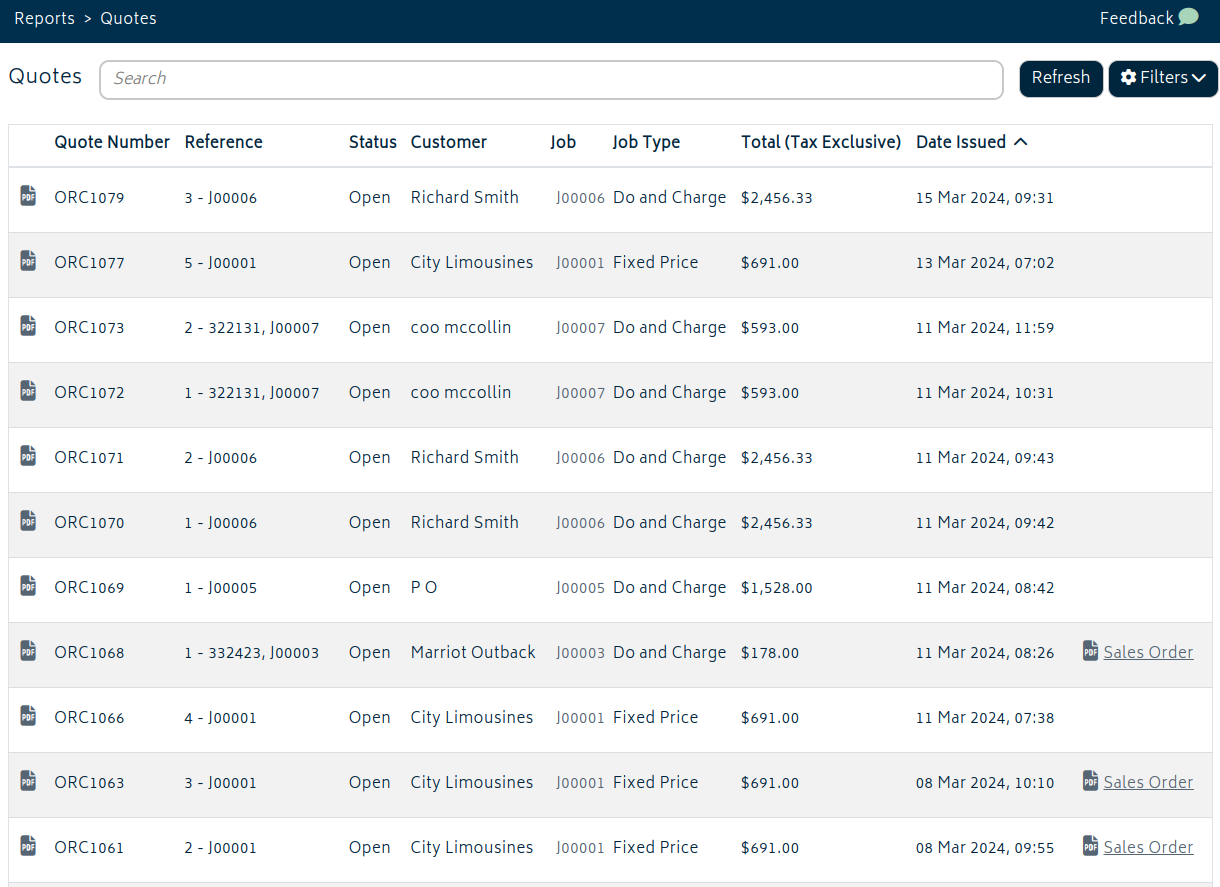
- You can search the quotes and estimates based on the reference number and customer name.
- To learn more, refer to the Quotes and Estimates section.
Supplier Bills
The supplier bills report allows you to view and reconcile all supplier bills entered into and synced to Gojee. By default, the supplier bills are sorted based on issue date. Refer to Purchasing for more information on supplier bills.

-
- Clicking the deep link to Xero will allow you to view the supplier bill from within Xero. If this is updated, the new version will be synced when supplier bills are pulled.
- Clicking the document link opens the PDF of the supplier bill. If it needs to be updated, the newest version of the PDF can be synced.
Goods Receipts
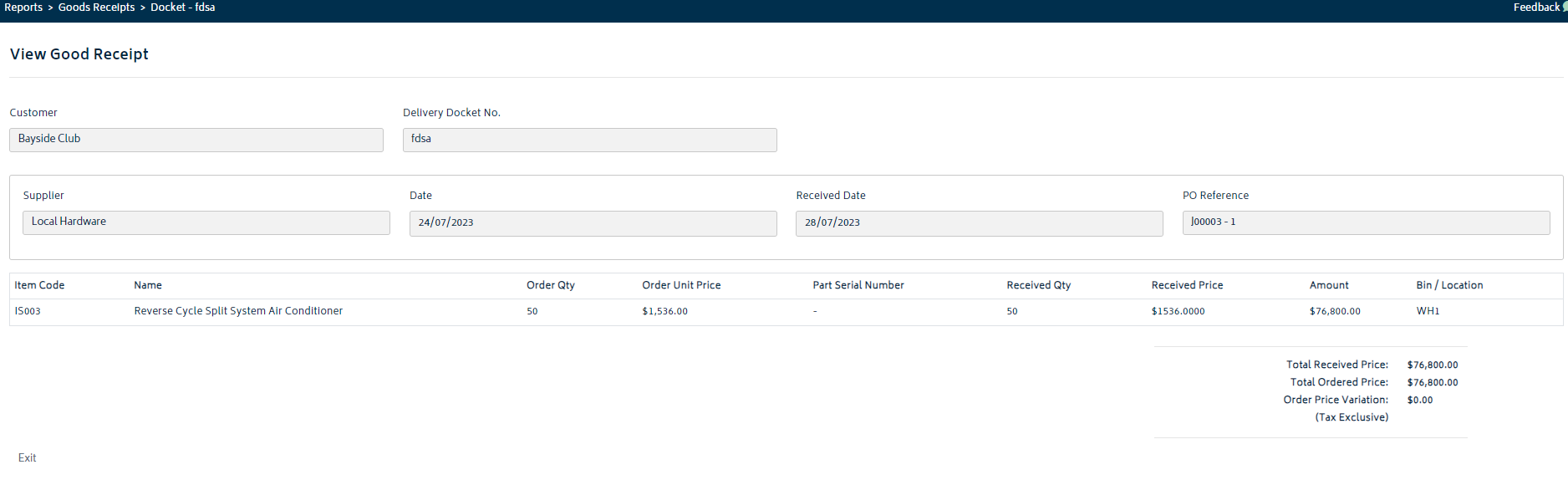
This report allows you to view all the good receipts after you have received the purchase orders. Refer to the Purchasing section for more information.

Clicking each of the Goods Receipts provide you details:
Purchase Orders
You can always click “All” to view all the Purchase Orders regardless of the status.
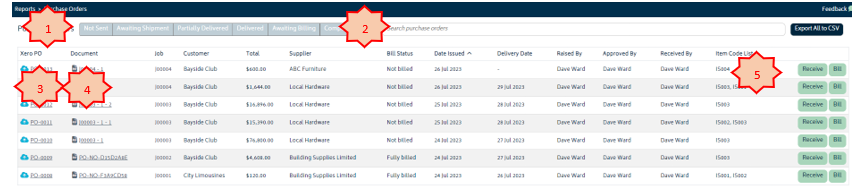
The numbered items in the image above are described below:
- Click on different statuses to filter and view Purchase Orders.
- Search for a particular PO using PO number, Customer Name, Supplier Name or Job Reference Number.
- The deep link to Xero allows you to view the Purchase Order in Xero.
- The attachment icon allows you to view the PDF for the PO.
- Click on the actions button to initiate actions against a PO, eg. receive, bill, email, or mark as emailed/received.
Refer to the Purchasing section for more information.
Inventory Movements
This report allows you to see all movements of all of your tracked inventory items. This is useful to see how many items were sold in a certain period, what was purchased etc.
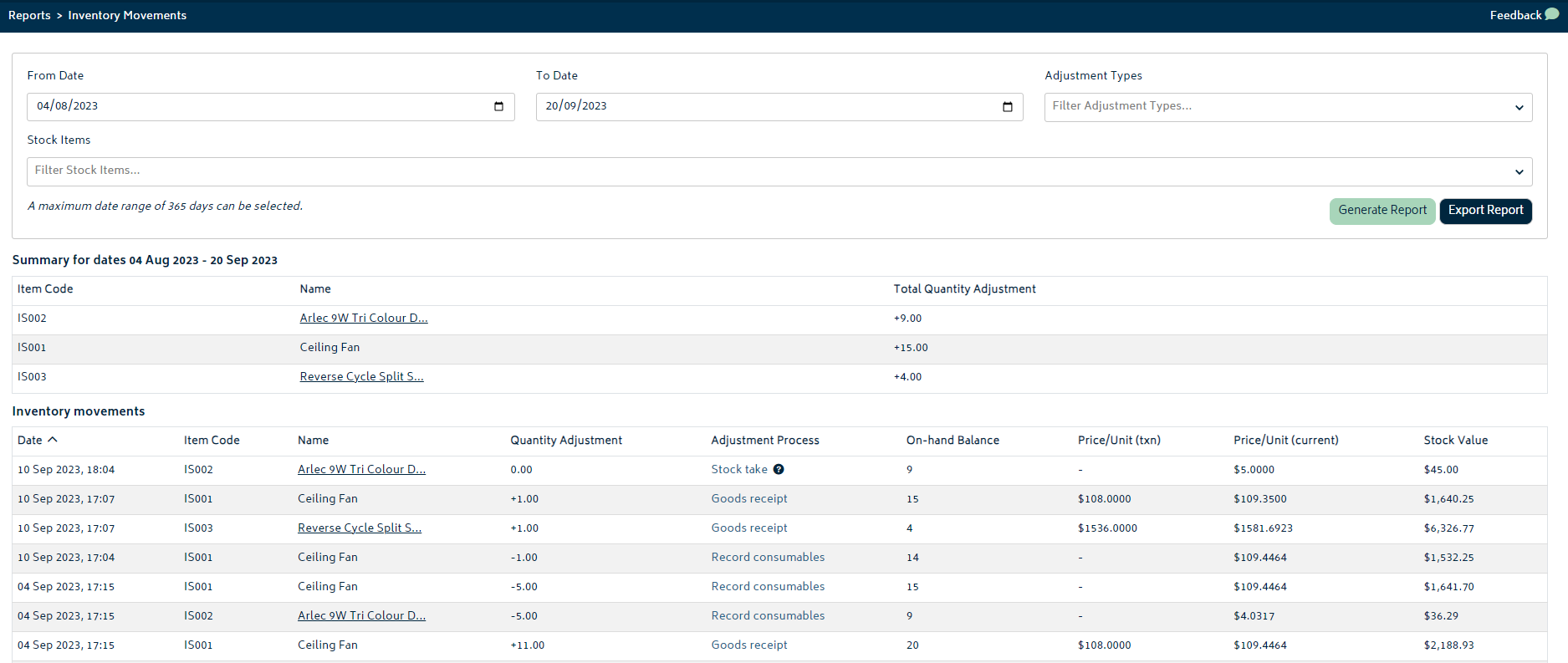
- Select the parameters of the report:
-
- Choose a date range of interest
- Choose an Adjustment Type (optional – if none is chosen all will show)
- Stock Item (optional – if none is chosen all will show)
- Hit the Generate Report button. The results will be shown in the list.
- Export the data shown on the page using the export button.
Explanation of Adjustment Types:
- Stock Take
- Records the details of a manual stock take
- Goods Receipt
- Records when an item is received from a PO into stock
- Record Consumables
- Records when an item is consumed onto a Job. For POS jobs this happens automatically, so this is a proxy for sales in the period.
- Return to Stock
- Records when an item is removed from a job and brought back to stock.
Job Transactions
The Job Transactions report provides a transaction-level financial view across jobs so you can inspect exactly what contributed to totals in reporting and job profitability.
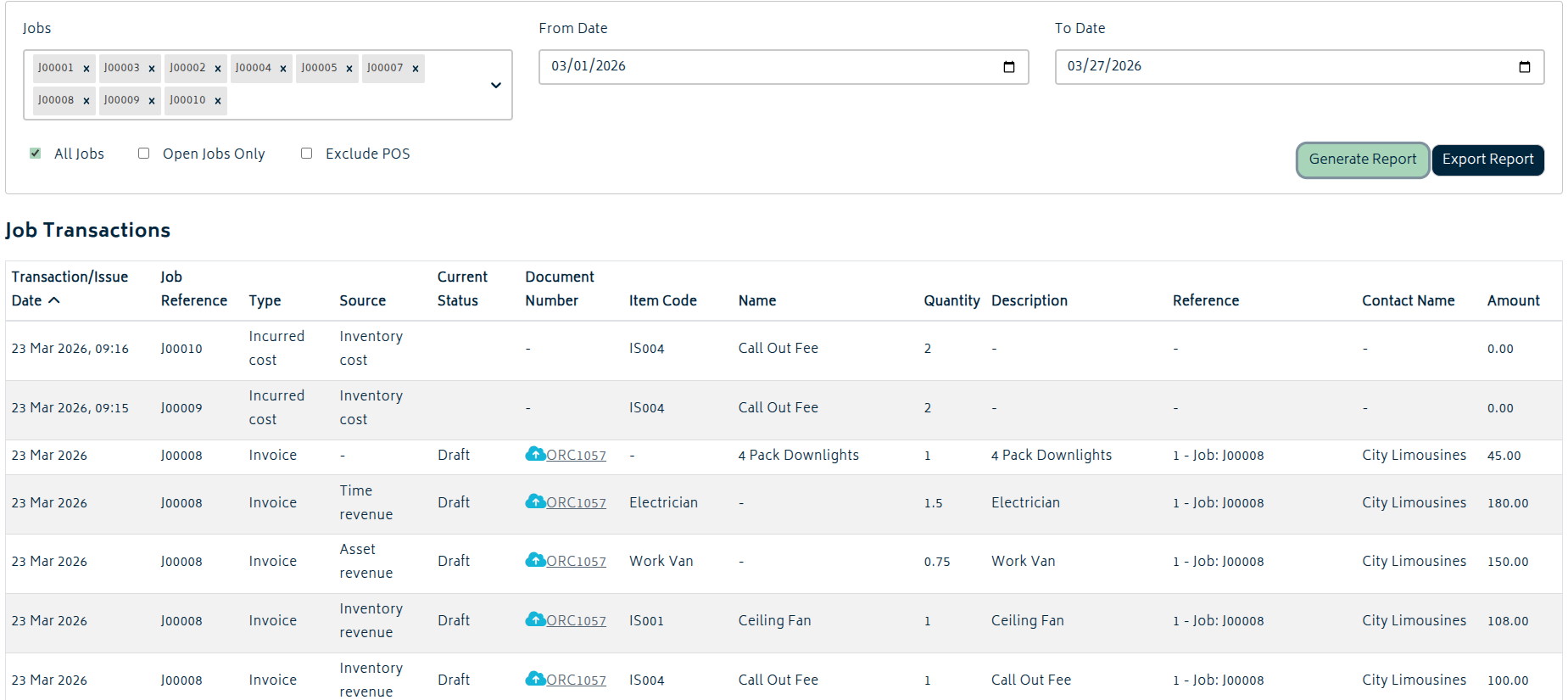
Set a date range and choose which jobs to report on from the dropdown, then click Generate Report.
- Clicking “All Jobs” will auto-select all jobs in the system.
- You can also use Open Jobs Only, and Exclude POS to refine the report scope.
- The Expected Delivery Date column has an entry for items in purchase orders so delivery commitments can be reviewed alongside each transaction row.
- Use the Job Reference and Document Number links to trace related records and confirm how values flow into report totals.
- Items received on Purchase Orders and automatically consumed onto a job will report the document number of the PO they came from.
- Use export to share or reconcile transaction-level data with external accounting workflows.
Stock on Hand Report
Navigate to Reports & Insights > Stock on Hand Report, choose a report date, optionally limit the report to on-hand items or remove archived items, then click Preview Report.
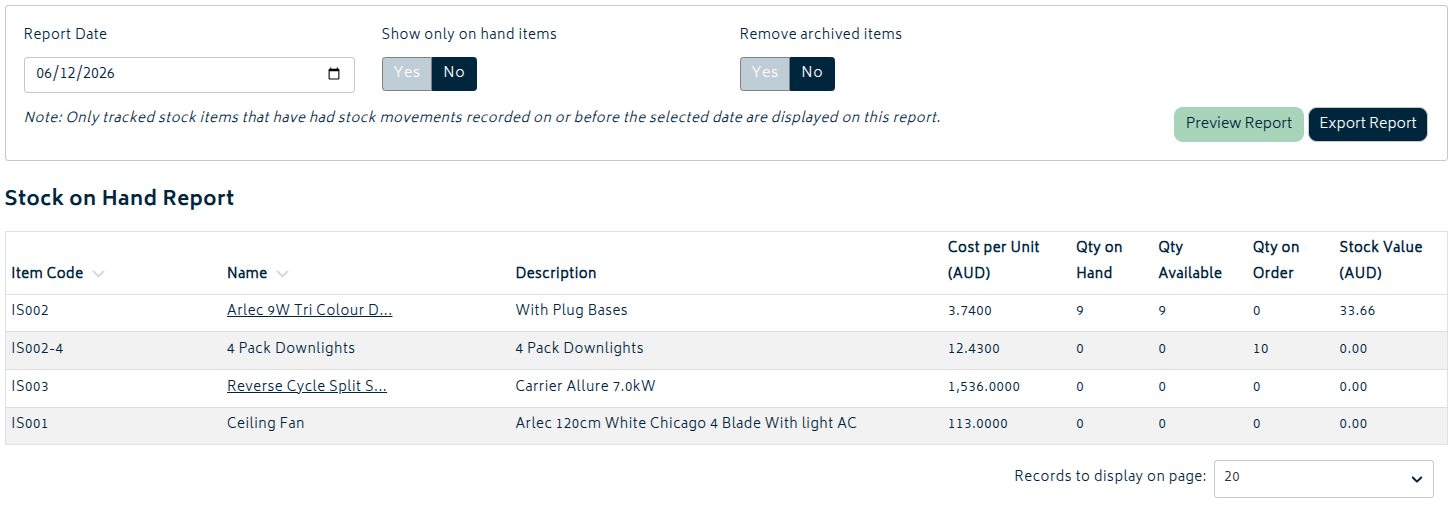
- The report shows item code, name, description, cost per unit, quantity on hand, quantity available, quantity on order, and stock value as it was at the date selected.
- Use Export Report to download the currently filtered report to CSV.
- Only tracked stock items with stock movements recorded on or before the selected date appear in the report.
Stock Planning
The stock planning report provides you with a detailed forecast of the required quantities and costs of required resources for all open and forecasted purchased orders given necessary all data is present. This data can also be filtered depending on what may be required.

The report utilises the preferred suppliers lead time and when the materials are needed to determine the ideal purchase order date. It takes into consideration the status of the purchase order and inventory reservations to ensure items are not re-forecasted and an accurate breakdown can be generated. All items are displayed independantly and can be expanded for detailed breakdowns including infomation on which purchase orders and jobs they are associated with. 
The required data can also be exported as a CSV whenever necessary. It will provide a high-level overview which can then be filtered as per the users’ needs. BOM line exclusion occurs when there is missing data or if the item is manufactured in house. The information is displayed right above the table and will specify the costs and reasonings. Excluded items can also be exported as a CSV if required.