Knowledge Base
Email Integration
Last updated on July 22nd, 2026
Setting up an email
Emails are split into two categories, personal and organisation-based. This allows for separation between organisation-wide access and for individual users to manage their own inboxes. Both share identical features, providing access to view inbound and outbound emails.
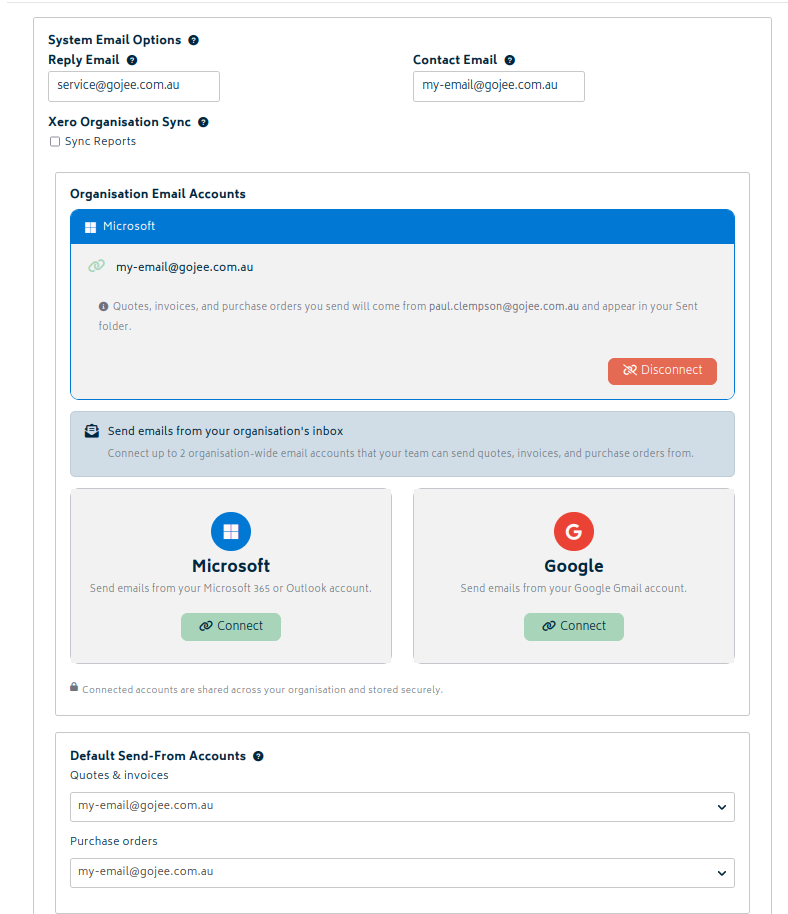
Setting up organisational emails can be found within the “Email Settings” subheading in Organisation Settings. Personal emails follow near-identical criteria but limit access to one email instead of two.
Locating email setup page:
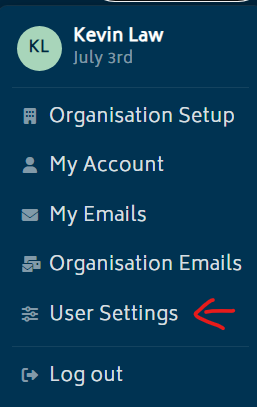
The personal email setup page can be found in “User Settings”, and organisation emails found in “Organisation Setup”.
Linking Business Email:
Organisation email setup page can be found under the email settings tab. Up to 2 of these can be linked at a time:

Linking Personal Email:
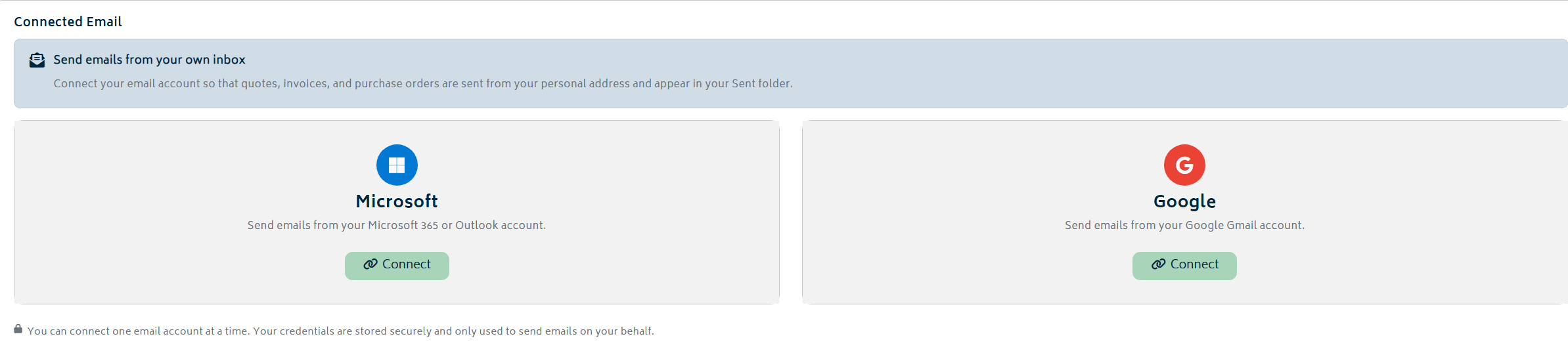
Note: Only 1 email can be linked.
Personal Email
Once successfully linked, the page can be found by interacting with your profile icon and finding the “My Emails” page. This platform is unique to each account holder meaning no other individual will have access to view these emails. Users will have full access with the ability to unlink and re-link an account to their needs.
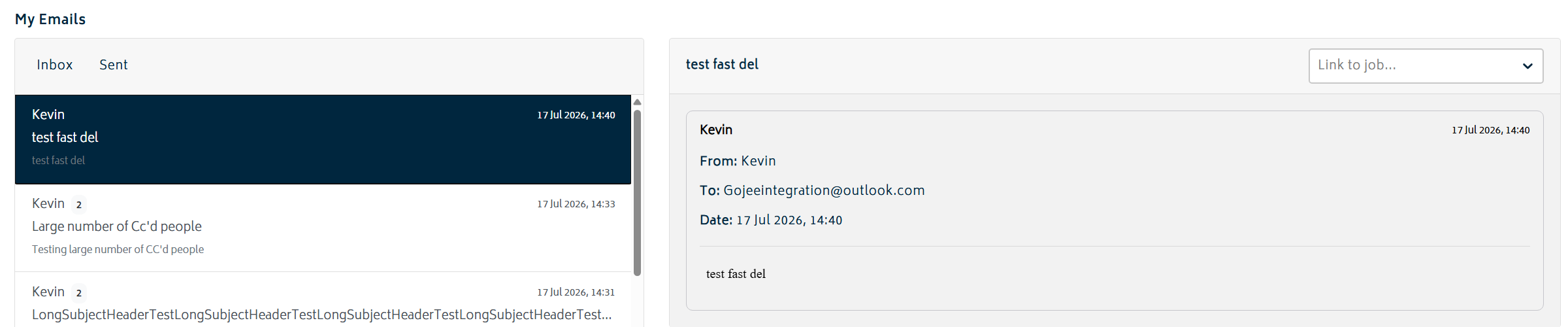
Organisation Emails
Organisation emails operate near identically to personal emails. Linking and managing an organisation email can be done by the business owner or any assigned admins. During initial set up, all members within an organisation will be given access to view any inbound or outbound emails. This can be changed to limit permissions to specific individuals.
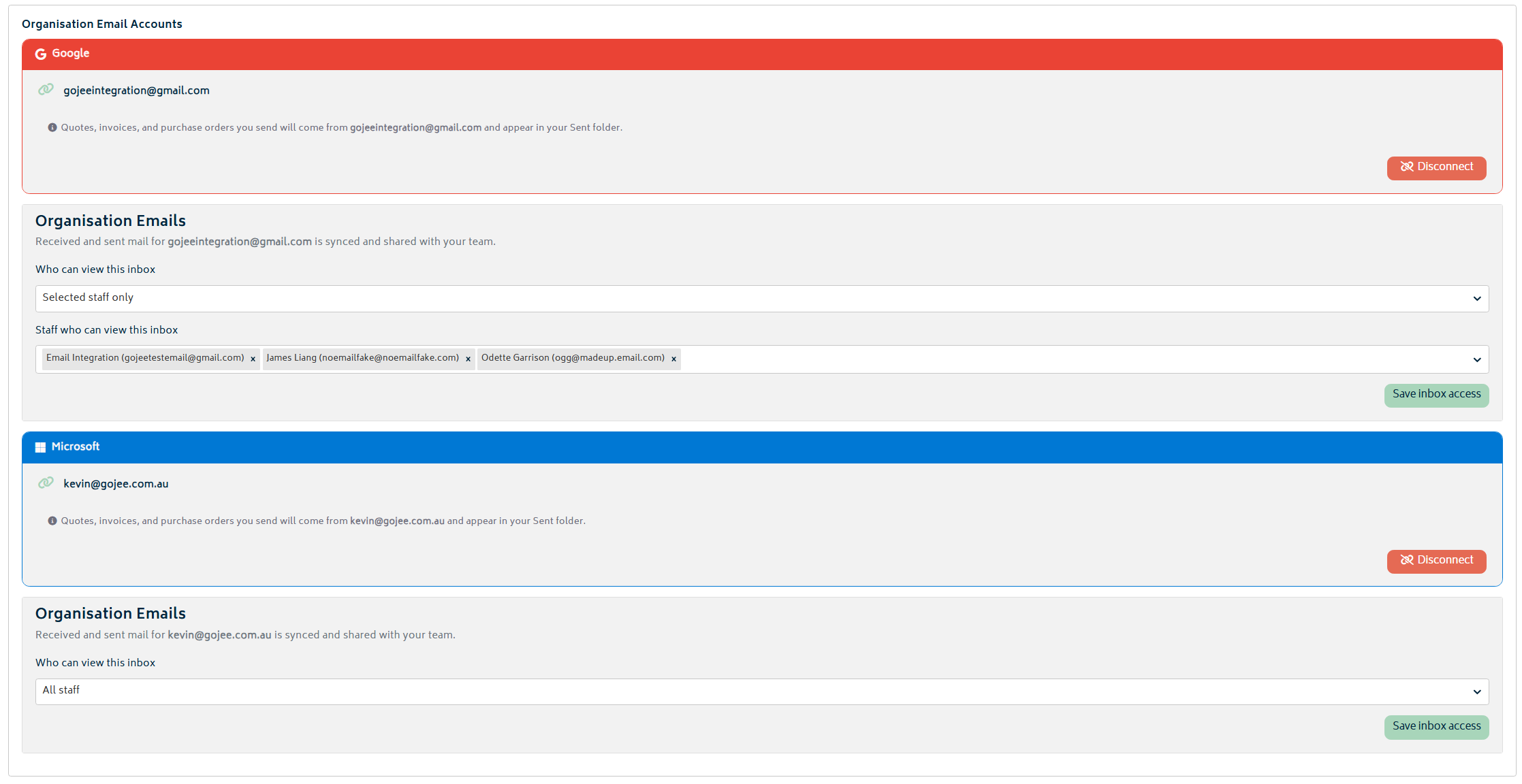
Unlike personal, up to two emails can be linked. Each will act independently from one another and can be assigned with different organisation members for viewing permissions. Both inboxes can be found within the same page with a tab allowing switching between the two if access is given.

Linking jobs to emails
A key feature of linking an inbox is the ability to assign an email directly to a job. This can be done by viewing an email chain within the Gojee inbox and assigning a job directly. In the instance where there is new incoming email whose participants match exactly one lead/active job, the email will automatically be assigned.

Linked emails can be viewed directly within the orders page under the “Feed” tab. It displays all associated emails organised chronologically with all attachments present. Any associated emails can also be removed and re-assigned within the main email page at any time.