Bill Reconciliation with Ease with Gojee and EzzyBills
There is no one-size-fits-all solution to supplier bills. Every supplier has their own method – sending them to you by email, tossing you a PDF, or having a physical copy of the bill sent alongside the goods. Someone then has to check each bill against the purchase order, confirm the amounts, verify the supplier, and work out whether the bill should be linked to received goods before it is trusted as a job cost. There’s friction every time, and that’s just a normal part of the process.
A small amount of upfront setup in Gojee can make the supplier bill process much easier to review and manage over time. Auto Supplier Bill Reconciliation – an add-on in Gojee – can assist with getting your costs reconciled with purchase orders with minimal intervention. This article is a brief tutorial on what needs to be configured to get a smoother end-to-end workflow from the point you receive the bill to your costs being reconciled and your books being balanced.
The first step is always getting your supplier bill recorded into the system in the first place. We’ve found that EzzyBills does a good job of this, and this is the tool we’ll be using to demonstrate how to get your bills into Xero and across to Gojee for reconciliation. Other tools such as HubDoc or Xero’s own OCR are also valid candidates for the process of getting your documents into Xero and then to Gojee.
How the workflow fits together
Instead of treating bill entry and purchasing control as two separate admin tasks, you get a cleaner flow from invoice capture through to reconciliation.
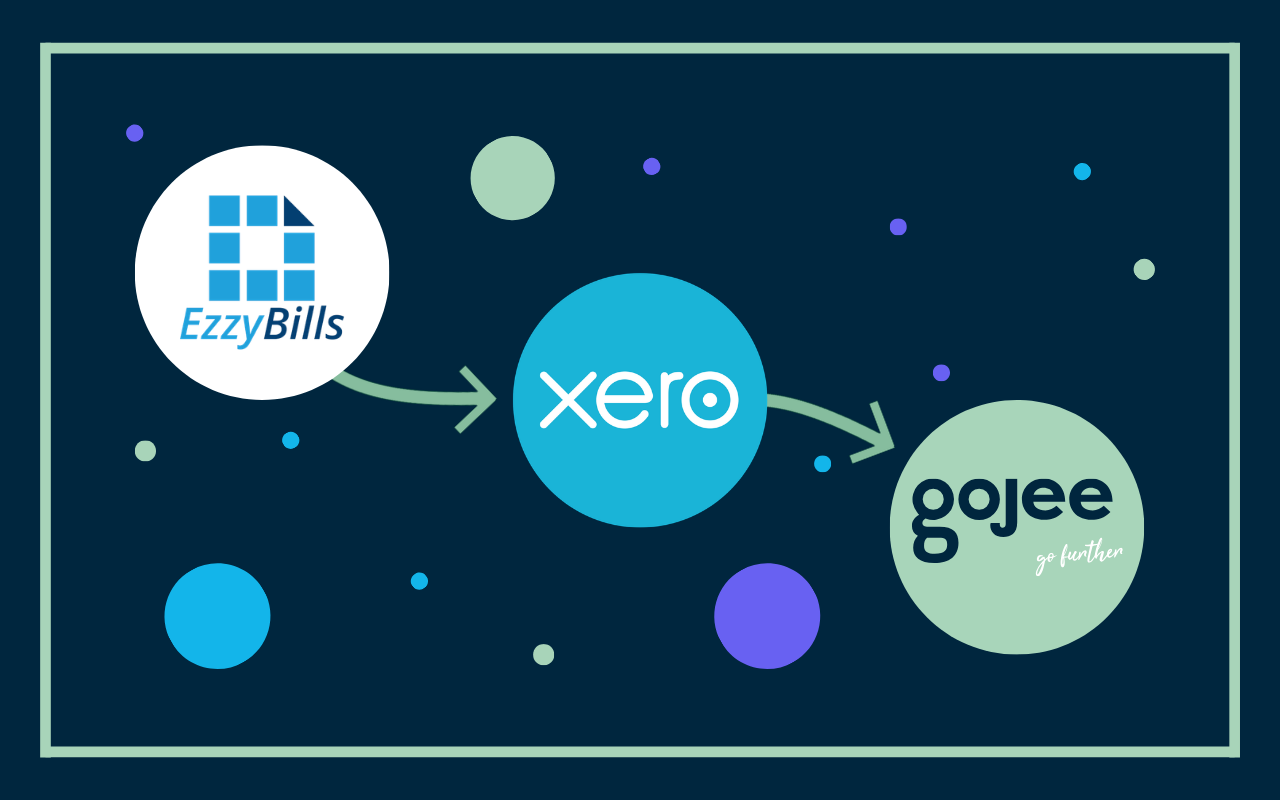
At a high level, the ideal process looks like this:
- A supplier’s invoice is received as a PDF or a physical copy to scan.
- EzzyBills captures the invoice details via OCR and creates the supplier bill in Xero.
- Gojee syncs that supplier bill through overnight sync (or a manual sync).
- Gojee checks whether the supplier bill can be reconciled against an existing purchase order.
- The overnight sync process will automatically reconcile the bill if valid.
- A manual sync will have the user hit “Auto Bill Reconciliation”
- Your team reviews the result and handles any exceptions.
This means EzzyBills can help reduce the data-entry workload at the front of the process, while Gojee helps control what happens next by checking whether the bill actually lines up with what was ordered.
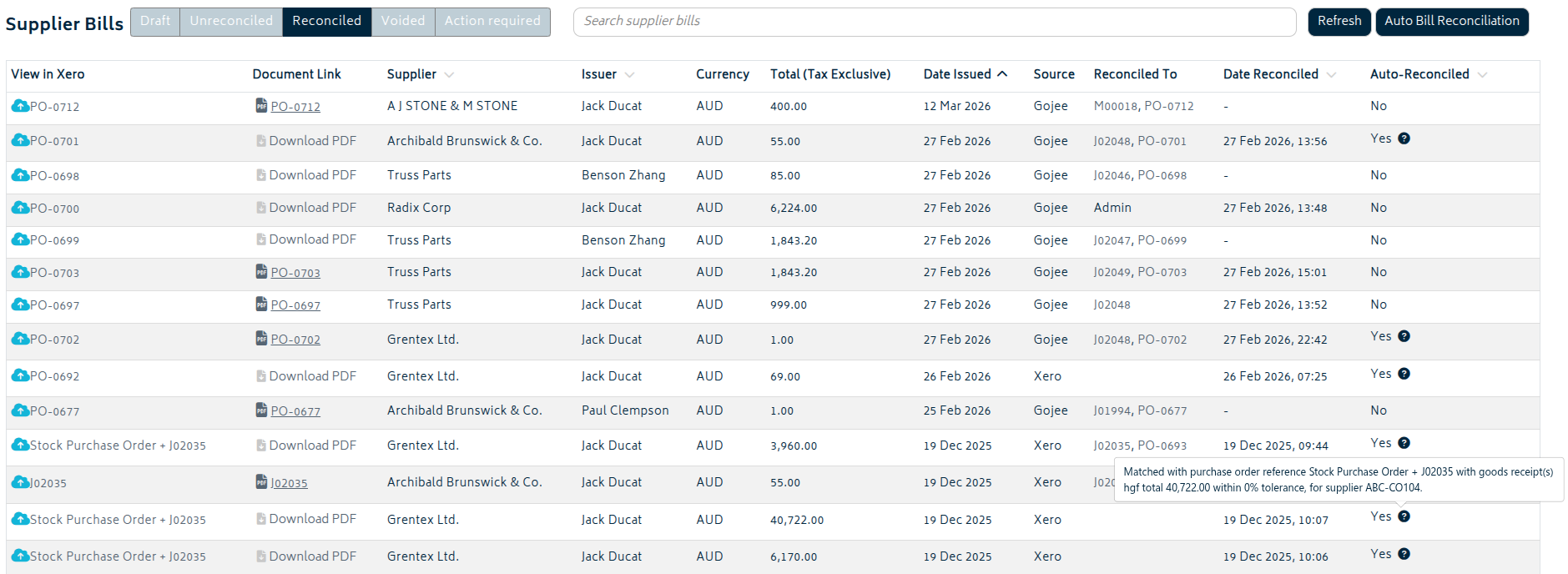
A selection of supplier bills that have been auto-reconciled in Gojee.
Before you start
In order to use Auto Supplier Bill Reconciliation, make sure the following are in place:
- The add-on is enabled for your organisation.
- You have the correct user access in Gojee, typically Job Manager or higher.
- Your supplier bills are being created in Xero as part of your EzzyBills workflow.
- The purchase orders you want to reconcile against already exist in Gojee.
- The supplier bills coming through from Xero include the required bill information, including a due date.
It is also worth checking your internal processes. The feature works best when your purchasing data is reasonably consistent, especially around suppliers, PO values, and goods receipt handling.
Setup Guide
Step 1: Set up EzzyBills
EzzyBills is straightforward to set up. The basic process of signing up and getting your Xero account connected is easily viewable on EzzyBills Docs. It will work much the same as connecting Gojee the first time to Xero. Ensure you follow the instructions in the EzzyBills Docs for getting your account ready for Xero.
Beyond the standard EzzyBills settings recommended for Xero, here are a few that we’ve found best work with Gojee:
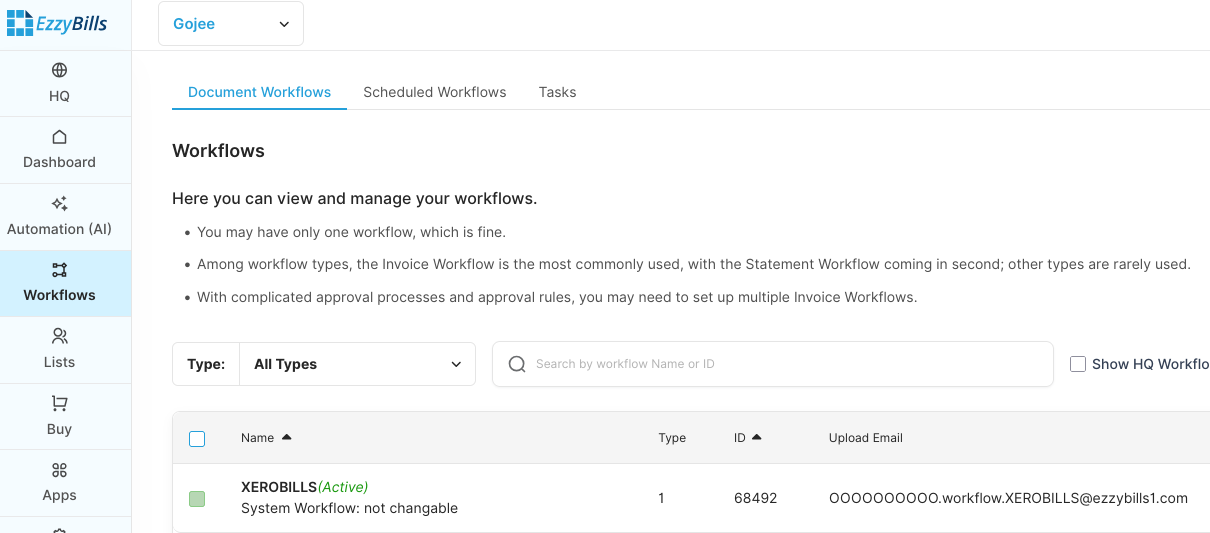
- Ensure the XEROBILLS workflow is active:
- Go to Settings > Advanced Options. Set up PO renaming as shown here:
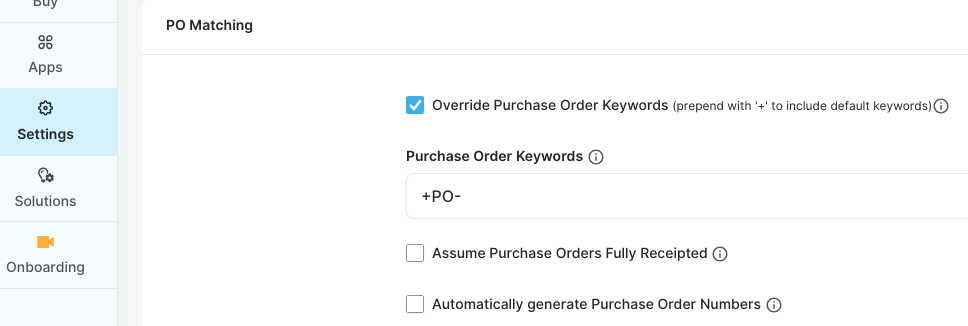
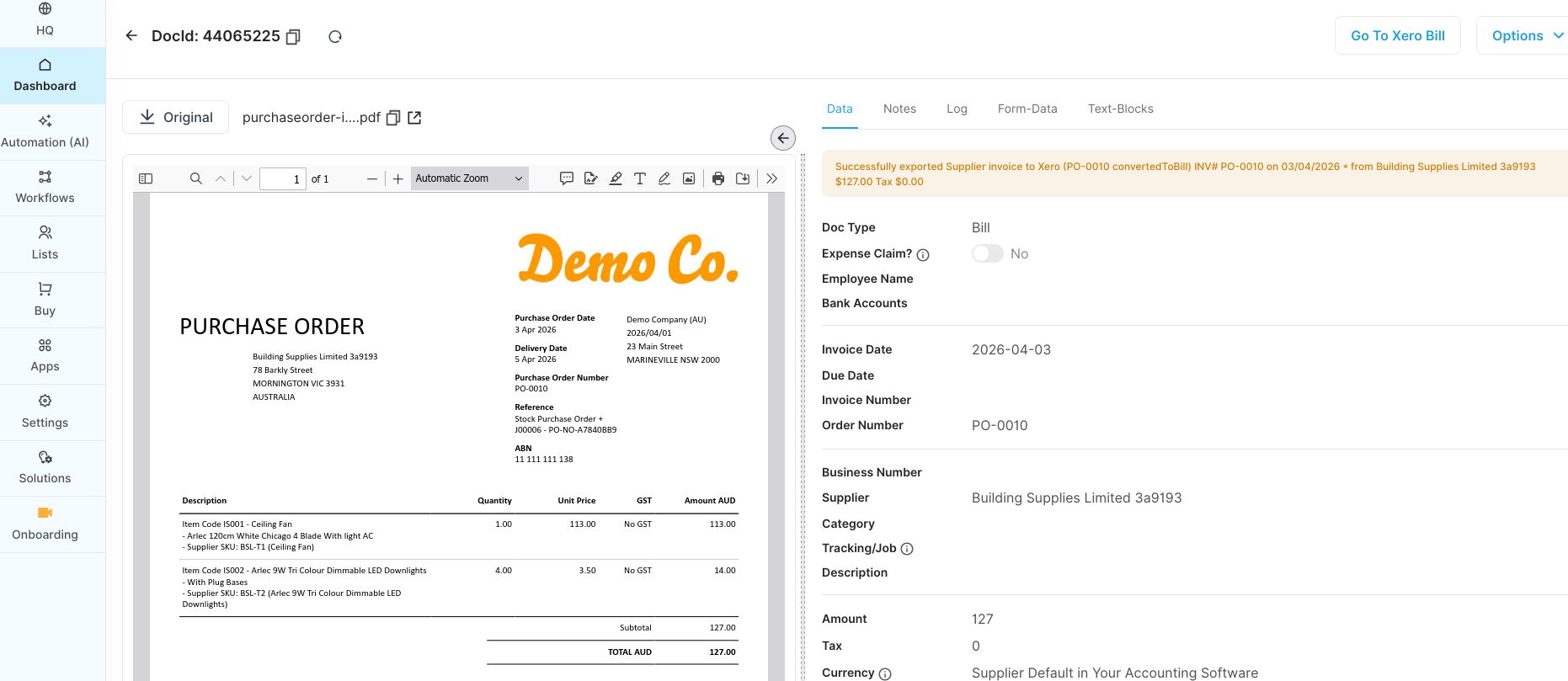
- Specifically – disable “Automatically generate Purchase Order Numbers” and enable the PO keyword “+PO-“. This is necessary to get the Reference field of the PO to populate (shown in EzzyBills as the Order Number):
- Ensure a due date is set up. This is required for automatic reconciliation. If suppliers do not include a due date in their bills, EzzyBills will default to the term set for the contact in Xero or the default term. For detailed information, check the EzzyBills User Guide on this topic.
Step 2: Enable and configure the add-on in Gojee
You will need to contact Gojee to enable Auto Supplier Bill Reconciliation – you can do so by booking a quick chat with us.
Once Auto Supplier Bill Reconciliation is available for your organisation, configure it in:
Organisation Setup → Resource Settings → Supplier Bills
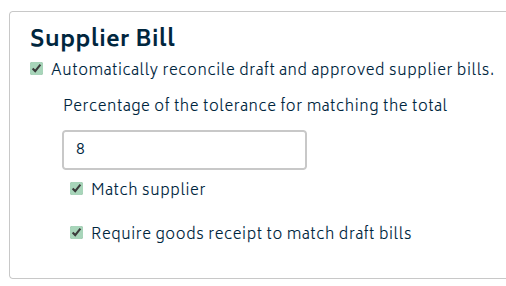
This is where you control how strict the reconciliation process should be. You can configure settings to work with your process such as:
- Tolerance for bill-to-order value differences
- If you allow a tolerance, Gojee can still reconcile a bill that is slightly above or below the PO value. We recommend 1% to account for rounding, etc.
- Whether the supplier on the bill must match the supplier on the purchase order
- This trades flexibility for accuracy.
- Whether goods must be received before the bill can be reconciled
These settings matter because they determine how Gojee decides whether a supplier bill is a valid match. If you are unsure where to start, it is usually better to begin with stricter settings and relax them later if needed.
Step 3: Confirm how bills are arriving from EzzyBills into Xero
From the Gojee side, the key assumption is that EzzyBills is creating the supplier bill in Xero with enough usable information for downstream reconciliation. Before relying on the workflow, confirm that bills created from EzzyBills include:
- the correct supplier
- the correct bill amount
- a due date (again, check the EzzyBills User Guide on this topic)
- a format that your team can identify and review in Xero if needed
That means if the source bill in Xero is incomplete or inconsistent, the bill in Gojee will not automatically reconcile and will require manual review.
Bills will come through to Xero as a draft bill. These do not need approving from the Xero side – so long as all of the bill criteria are accurate, the auto-reconciliation will still match the bills and reconcile them.
Step 4: Sync with Xero and handle bills that do not reconcile
All bills that pass through Xero will come through to Gojee via the overnight sync. A supplier bill that aligns with a purchase order and meets the configured rules during the overnight sync will be reconciled automatically. Most of the bills you need to have reconciled will be able to be reconciled this way.
This means that even with automatic reconciliation, not everything will reconcile cleanly. As such, your team should review the bills that come through. Common reasons for not reconciling include:
- there is no purchase order for the bill in Gojee (eg. field purchases or utilities)
- the bill amount is outside the configured tolerance
- the supplier on the bill does not match the supplier on the PO
- goods have not yet been received where receipt is required
- the purchase order has already been billed
- the bill is missing required information, such as a due date
When this happens, the next step is usually to determine whether the issue is:
- a data quality problem in the bill
- a mismatch with the data provided by the PO
- a settings issue, where the reconciliation rules are too strict or too loose for your real process
- a non-issue – the bill simply requires a different type of reconciliation
It is worth treating early exceptions as configuration feedback. If the same mismatch appears repeatedly, it may indicate that organisation processes or settings need adjustment.
For bills that don’t reconcile automatically, incidental purchases can be reconciled from supplier bills directly onto a job – and freight costs split among inventory items to assign landed costs to received stock. Unrelated bills that come through can be directly marked as reconciled.
If reconciliation is not working as expected
If bills are not reconciling the way you expect, check the following:
Check the purchase order status
Make sure the purchase orders are still eligible for reconciliation and have not already been billed.
Check the bill data in Xero
If the bill created from EzzyBills is missing expected fields, or has inconsistent supplier, PO number, or date information, Gojee may not be able to reconcile it as intended.
If in doubt, contact support
If you need assistance with this feature, an explanation, or troubleshooting, please contact Gojee Support. A handy guide focusing on just the add-on is available in our Knowledge Base and you can refer back to it any time.
Workflow value proposition
From a Gojee perspective, the value of this workflow utilising EzzyBills and auto-reconciliation is faster administration and better control over purchasing and supplier costs. When supplier bills are scanned in and reconciled properly against purchase orders generated in Gojee:
- purchasing records stay cleaner
- exceptions are easier to spot
- supplier costs are easier to trust
- job costing is less likely to be distorted
That is especially important for businesses where purchase orders feed directly into project or job cost reporting. Pairing supplier bill entry OCR software such as EzzyBills with Gojee’s Auto Supplier Bill Reconciliation add-on can remove a lot of data entry and admin overhead while improving confidence in the numbers.