
Knowledge Base
Importing and Exporting Asset Data
Last updated on May 11th, 2023
Introduction
Use the asset type import when you want to create or update the shared catalogue setup for a class of asset. Use the asset instance import when you want to create or update the individual records in the asset register.
These CSV tools are primarily for bulk maintenance in Gojee. They do not create fixed assets in Xero.
Importing Asset Instances and Asset Types
To start an import, navigate to Inventory & Assets, View/Edit Assets. Click on the Actions button at the top right of the page and select Import/Update from CSV. You will be presented with the following modal:
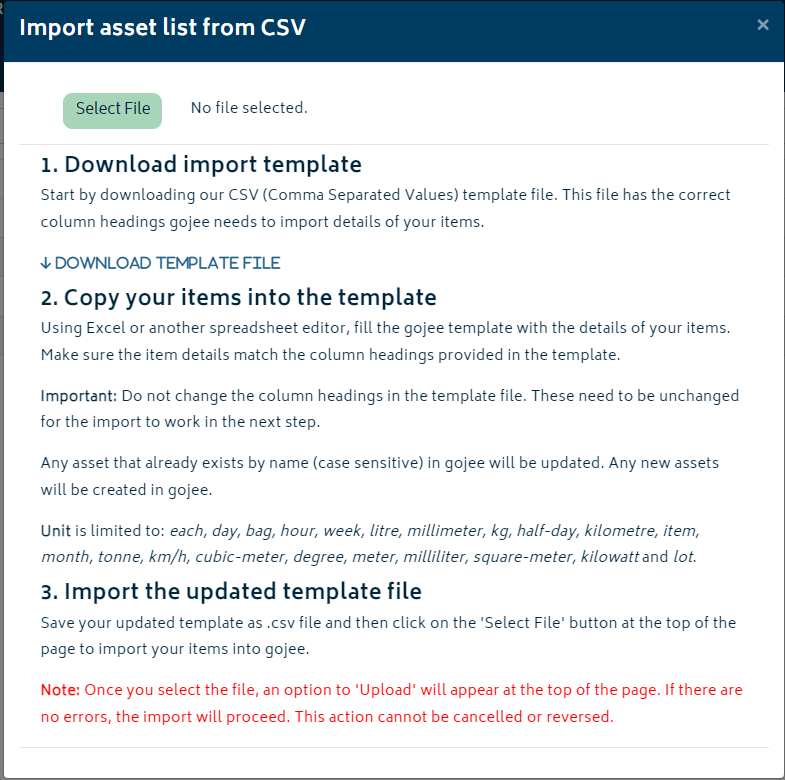
Download the template from the modal and prepare your CSV file.
Asset instances are matched by asset code within your organisation. If the asset code already exists, that asset instance will be updated. If the asset code is new, a new asset instance will be created.
The asset type name in the CSV must match an existing active asset type in your organisation, and this match is case-insensitive. If a customer name is provided, it must match an existing customer in a case-insensitive way and must not be ambiguous (i.e. there are two customers named Bayside Club – you will need to rename one to disambiguate).
This CSV can be used for bulk upload of new assets or bulk registry of the asset instance’s details such as the name, cost per unit, description, tags, serial number, engine number, model, chassis number, registration number, customer, and various finance details.
If your organisation does not use the Asset Management add-on, the finance-related columns are ignored during import.
Asset types can be imported in much the same way, with one important difference. Asset types are matched by name in a case-insensitive way. If an asset type with the same name already exists in Gojee, it will be updated. If the name is new, a new asset type will be created. The asset type import/export are accessible from the Asset Type List.
Besides importing new assets, fields that can be updated include the unit, cost per unit, price per unit, description, and markup settings.
Upload Monitor Point Data
If the Asset Management add-on is enabled, asset monitor points can also be uploaded in bulk. To do this, navigate to Resources > Assets and click Actions > Upload Monitor Point CSV.
This import is used to append monitor point records such as kms, hours, and fuel usage against existing assets. Each row in the CSV creates a new monitor point entry. Existing monitor point records will not modified.
Monitor point imports match assets by asset code. To prevent bulk duplication of dates and monitor points, any date that already has a monitor point for an asset will block the upload. You can fix this by removing those lines from the CSV.
Exporting Asset Data to CSV
You can export asset types and asset instances separately.
- To export asset types, navigate to the Asset Type List page via the Navigation Dashboard. On the Asset Types page, click Actions > Export to CSV.
- To export asset instances, navigate to Resources > Assets and click Actions > Export Instances to CSV.
The exported CSV files are useful when preparing bulk updates, as they give you a correctly structured starting point. The exports include active asset records only.
For asset types, the export will also include informational columns such as whether the type was imported from Xero. Extra columns that are not part of the import rules are ignored if you use the export as the basis for an update file.