
Knowledge Base
Bank Transaction Reconciliation
Last updated on June 12th, 2026
About Bank Transaction Reconciliation
Bank Transaction Reconciliation adds an Expenses workflow for Xero spend-money transactions. This is useful when a cost has already been paid directly from a bank account or credit card in Xero, but still needs to be allocated to a job in Gojee.
When the add-on is enabled, Gojee can sync spend transactions, spend prepayments, and spend overpayments from Xero so they can be reviewed and reconciled in Gojee.
This workflow is intended for direct operating expenses that do not come through the normal supplier bill process, but still need to be reflected in job costs and reporting.
Prerequisites
- Feature enabled: This is an organisation add-on and must be enabled in Organisation Setup.
- Xero sync: Expense data comes from synced Xero bank transactions. The sync becomes automatic after the first manual sync of “Expenses”.
- Permissions: Job manager level access is required to work with the Expenses page.
Review the Expenses List
Once enabled, the Expenses page becomes available under the Reports menu in the main navigation. Open Reports > Expenses to see the synced expense list.
This page shows active expense transactions that are already reconciled in Xero.
The Expenses list is the main overview for synced bank transactions.
- Use the status tabs to switch between Unreconciled, Reconciled, Deleted, and Action required expenses.
- Filter by Type to focus on spend, prepayment, or overpayment transactions.
- Filter by Bank account and Date to narrow the list to a specific account or period.
- Use the search field to find expenses by reference or other visible list data.
- Use Refresh to reload the latest synced data.
Each row shows the transaction reference, type, contact, bank account, date, currency, total, status, whether it is reconciled in Xero, and whether it has been reconciled in Gojee. If a row has a Xero link available, you can open that expense directly in Xero from the list.
Status meanings
- Unreconciled: the expense is reconciled in Xero but has not yet been reconciled in Gojee.
- Reconciled: the expense has been reconciled in both Xero and Gojee.
- Deleted: the synced expense has been deleted in Xero.
- Action required: the expense was already reconciled in Gojee, but was later changed, unreconciled in Xero, or deleted in Xero and now needs attention.
Reconcile an Expense
Click an expense row to open the detail page. Gojee shows the transaction header information first, including currency, contact, date, bank account, reference, and total. Below that, each expense line item must be reviewed.
For every line item, choose one of these options:
- Non-job cost if the line should remain outside job costing.
- Job cost if the line should be allocated to a job in Gojee.
If you choose Job cost, you must then select the job the cost belongs to and select the item used to allocate the cost. Like supplier bill reconciliation, only untracked items and job-related single use items can be used to allocate these costs. If needed, you can create a new single use item from the item picker while reconciling.
Once reconciled, the expense is marked as reconciled in Gojee and the selected job-cost lines are allocated against the chosen jobs.
Changed or Reversed Expenses
Reconciled expenses can be unreconciled from the expense detail page if they need to be reversed or corrected. To do this, simply open the expense and click the Unreconcile button at the bottom of the page.
If an expense is changed in Xero after it has already been reconciled in Gojee, the system will warn you by placing the expense under Action Required. This can happen if the expense is edited, deleted, or unreconciled in Xero after the Gojee reconciliation was completed. When opening the expense, if there are changes to the expense, a modal will notify you of what has changed.
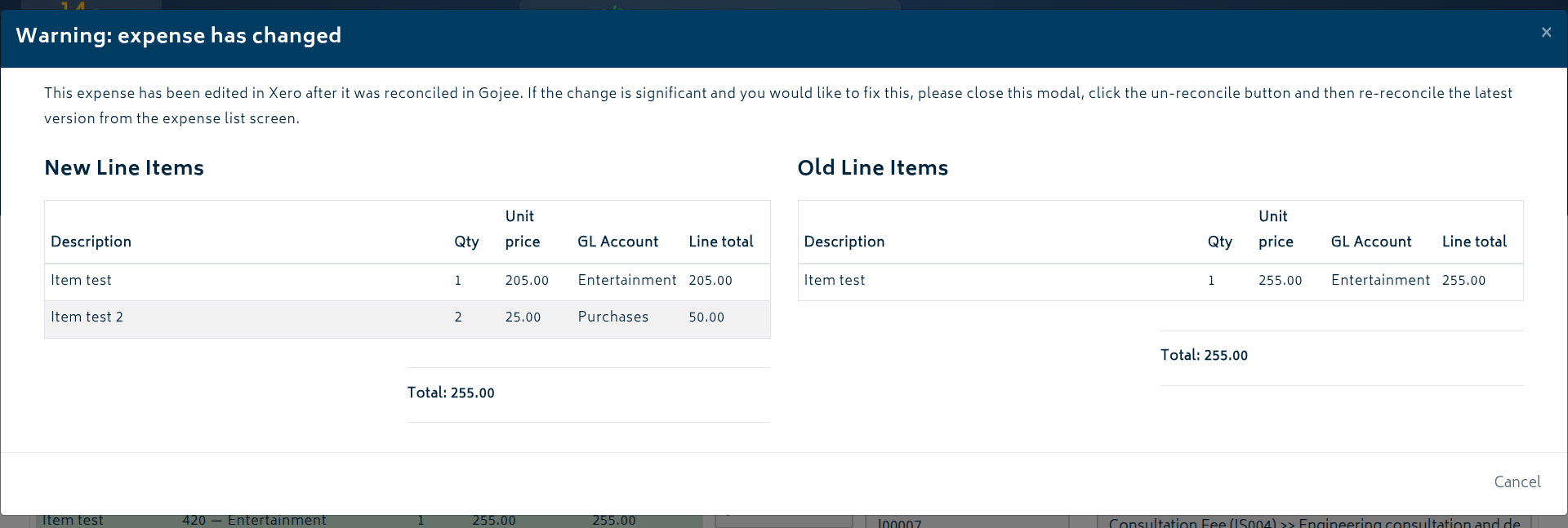
The recommended workflow for any expense under Action Required is to unreconcile the expense in Gojee and then reconcile it again if needed. This helps keep the Gojee job-costing record aligned with the latest Xero transaction data.