
Knowledge Base
Advanced Payroll
Last updated on April 1st, 2026
Introduction
The Advanced Payroll add-on introduces pay templates and pay template interval processing for timesheets. It is designed for organisations that need more control over how time is processed for payroll. Please note that the Custom Activities add-on must be enabled first, and that pay templates cannot be assigned to non-Xero staff.
Advanced Payroll enables pay templates and interval processing via staff timesheets. Pay templates define a rule based system for how staff hours are to be calculated and how they are to be paid, including break rules and other payment conditions. Pay Templates are built from one or more rules. Each rule within a pay template can define:
- The days it applies to (Monday-Sunday individually, public holidays).
- Minimum/maximum hours and time rounding.
- Break-time processing (scheduled breaks or threshold-based breaks).
- Earning rate allocations (threshold-based allocation to activities).
- Extra bonus or hazard pay for specific professions/activities.
Assigning the pay template to staff members will allow you to run more complex and customised methods for calculating how much staff are to be paid, fitting around your organisation’s costing rules.
Setting Up Pay Templates
To create a pay template…
- Go to Resources > Pay Templates.
- Click Add Pay Template.
- Enter a Pay Template Name (required) and an optional Description.
- Click + Add new rule.
- In Applicable Days, select the working days this rule should apply to.
- At least one day must be selected for a rule.
- Across all rules in a pay template, all days must be represented at least once.
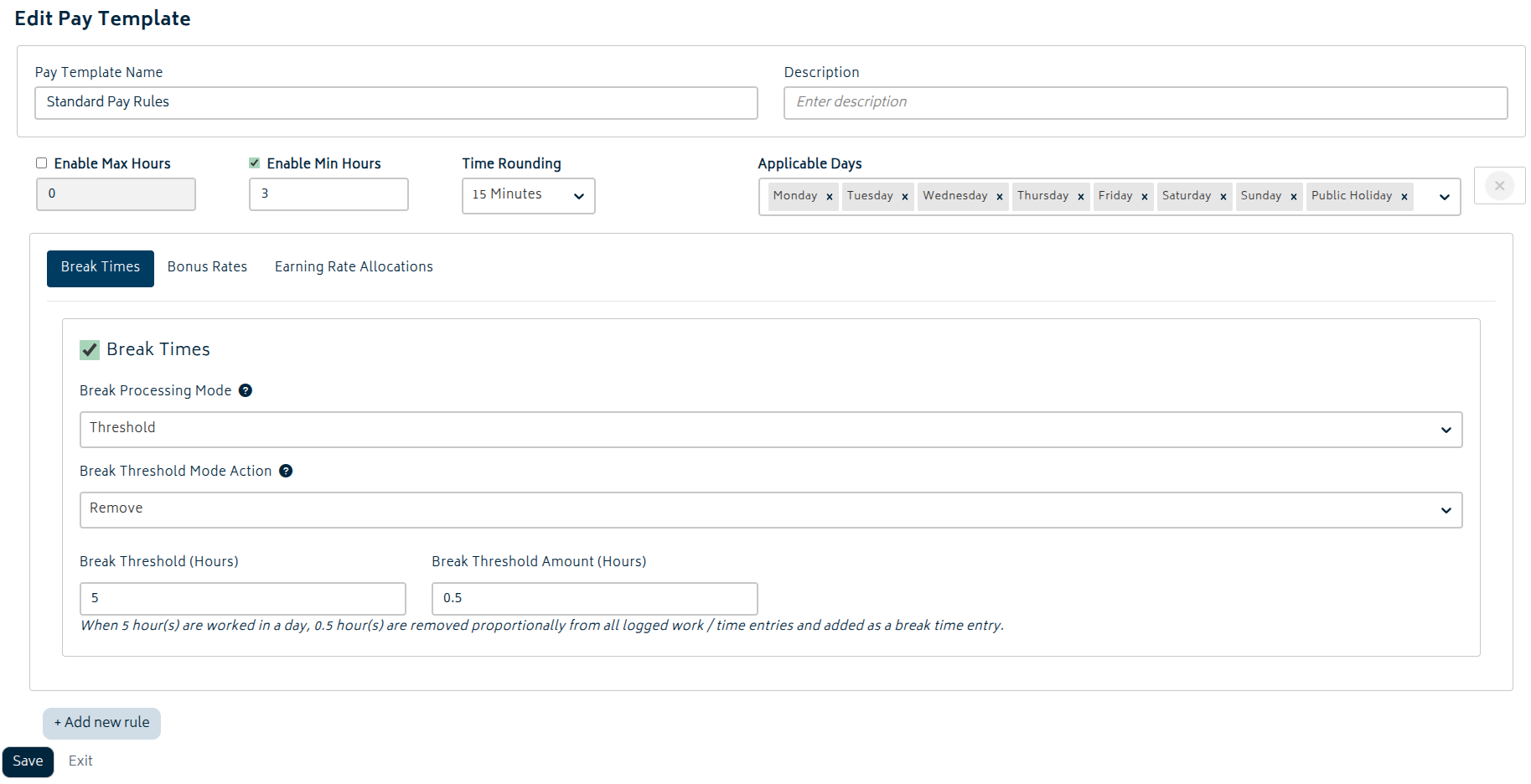
Once these are configured, you will be able to save the pay template. Within the rule, you can set up the following:
Hour Constraints
- Enable Max Hours (and set the max hours value),
- Enable Min Hours (and set the min hours value),
- Time Rounding (Don’t round / 15 minutes / Half hour / Hour).
Each rule contains separate tabs for detailed configuration of Break Times, Earning Rate Allocations, and Bonus Rates.
Break Times
Tick the Break Times checkbox to enable break processing for this rule.
There are two break processing modes:
- Scheduled
- Add up to 3 breaks using + Add break.
- Set a Break Start and Break End for each break.
- Break times must not overlap, and the end time must be after the start time.
- Scheduled breaks will overwrite work performed during the period that they occur.
- Threshold
- Break Threshold Mode Actions include Add or Remove.
- Add creates an additional break time entry on top of all other entries; Remove removes break time proportionally from logged work/time entries
and creates a break time entry.
- Add creates an additional break time entry on top of all other entries; Remove removes break time proportionally from logged work/time entries
- Break Thresholds (Hours) will trigger a break when the specified amount of time has been worked.
- Break Threshold Amount (Hours) is the break length (when applied).
- Break Threshold Mode Actions include Add or Remove.
Earning Rate Allocations
This section allocates time to activities using thresholds.
Activities come from your organisation’s task activities (Custom Activities).
- Click the Earning Rate Allocations tab.
- Tick Earning Rate Allocations to enable it for this rule.
- Choose a Threshold Processing Mode:
- Daily: thresholds reset each day (e.g. first 8 hours regular, then overtime).
- Combined: thresholds accumulate across the week starting from a selected day (e.g. 40 hours regular, then overtime).
- If using Combined mode, set the Threshold Processing Start Day.
- Add an allocation using + Add allocation.
- In Daily mode, allocations support Start Time and End Time (with an End of Day option).
- In Combined mode, allocations are treated as a full-day window (00:00 to end of day) and only one allocation is supported.
- Under Thresholds, define how hours are allocated:
- Add thresholds with + Add threshold.
- For each threshold, select an Activity.
- For all but the last threshold, set Max Hours.
- You can reorder thresholds using the up/down controls.
Bonus Rates
Bonus rates can be configured per rule by profession and activities.
- Click the Bonus Rates tab.
- Tick Bonus Rates to enable it for the rule.
- Use + Add bonus rate to add one or more bonus-rate rules.
- Select a Profession and one or more Activities for each bonus-rate rule.
Assigning and Processing Pay Templates
Assigning a staff member with a pay template is a simple task. For any Xero staff, simply find the staff member in the staff list and select the pay template you wish to assign.
- In Pay Templates Configuration, select the appropriate pay template for that staff member.
- Note that this section is shown for Xero staff only.
- Save changes.
In order to apply the pay template to a staff member’s time, you will need to process the intervals. You can do this from the staff member’s timesheet for the current period. Open a timesheet for review.
Click Process intervals via Pay Template to generate pay template intervals. These can be modified
If you later change the pay template configuration or the underlying time entries, click Reprocess intervals via Pay Template.
Note that if you submit the timesheet to Xero, it cannot be un-sent. Please ensure all pay template processing is correct prior to importing the timesheet into Xero.